
Sync your notes
The same notes on several computers, encrypted end to end. Or in a GitHub repository.
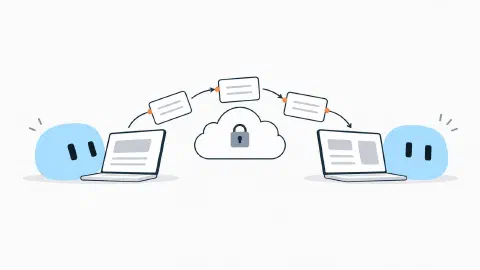
Syncing keeps a copy of your notes in the cloud. On another computer, the notes arrive; edit wherever you want and they meet up.
Choose where to keep them
Click Sync, at the top (in a site) or in the side bar (in a vault). In Where to keep the notes:
- Blup Cloud (recommended): encrypted end to end. Not even Blup can read them.
- GitHub: in a private repository of your GitHub account. No git needed.
With Blup Cloud
The first time
- Sign in to your account (see Account and plans).
- Create the notes password, with at least 8 characters. It scrambles the notes before they leave the computer.
- Keep your recovery key. It shows up only once: copy it and keep it somewhere safe, away from this computer. Check I kept the key somewhere safe and click Continue.
Nobody else has this password
Not even Blup. If you lose the password and the recovery key, the notes in the cloud can’t come back. The notes on your computer are still there.
On another computer
- Install the Studio and sign in to the same account.
- The Studio asks you to Type the notes password. Use the password or the recovery key and click Open the notes.
- Pick the sites and vaults to Bring.
When it syncs
- Free: when you tap Sync.
- Pro, Max and Ultra: on its own, while you write. The other computers find out right away.
How the encryption works
Everything is compressed and encrypted on your computer, before it leaves. The cloud keeps only unreadable pieces: it can’t see the text, or the names of your notes and folders. The key that opens the notes is protected by your password and, in a second copy, by the recovery key.
Files bigger than your plan’s limit don’t sync, and the Studio tells you which ones.
With GitHub
- In Where to keep the notes, pick GitHub and connect your account (a key, just like for publishing).
- Blup creates a private repository for the notes.
- Check shows how many notes will be sent and received. Sync now does it.
On another computer, on the start screen, I already have a Blup site lists the sites kept in your GitHub so you can Bring them. For the command line, see Sync.
Conflicts
If the same note was edited on two computers before syncing, Blup keeps both: yours, with the normal name, and the other one, with “conflict” and the date in its name. Compare them, merge what you want and delete the copy.
| Situation | What happens |
|---|---|
| Changed only here | It is sent |
| Changed only on another computer | It is received |
| Deleted on one side | It is deleted on the other |
| Deleted on one side and edited on the other | The edited version stays |
| Edited on both sides | Both stay |
What doesn’t sync
Folders that start with a dot (like .git) stay out. The site settings that need to travel (name, theme, where it’s published) go along; passwords and access keys don’t.